 TEMPO
 SUNCLAX
Obsidian Users Keep Forgetting the Pomodoro Timer. 6 Fixes That Made It Stick
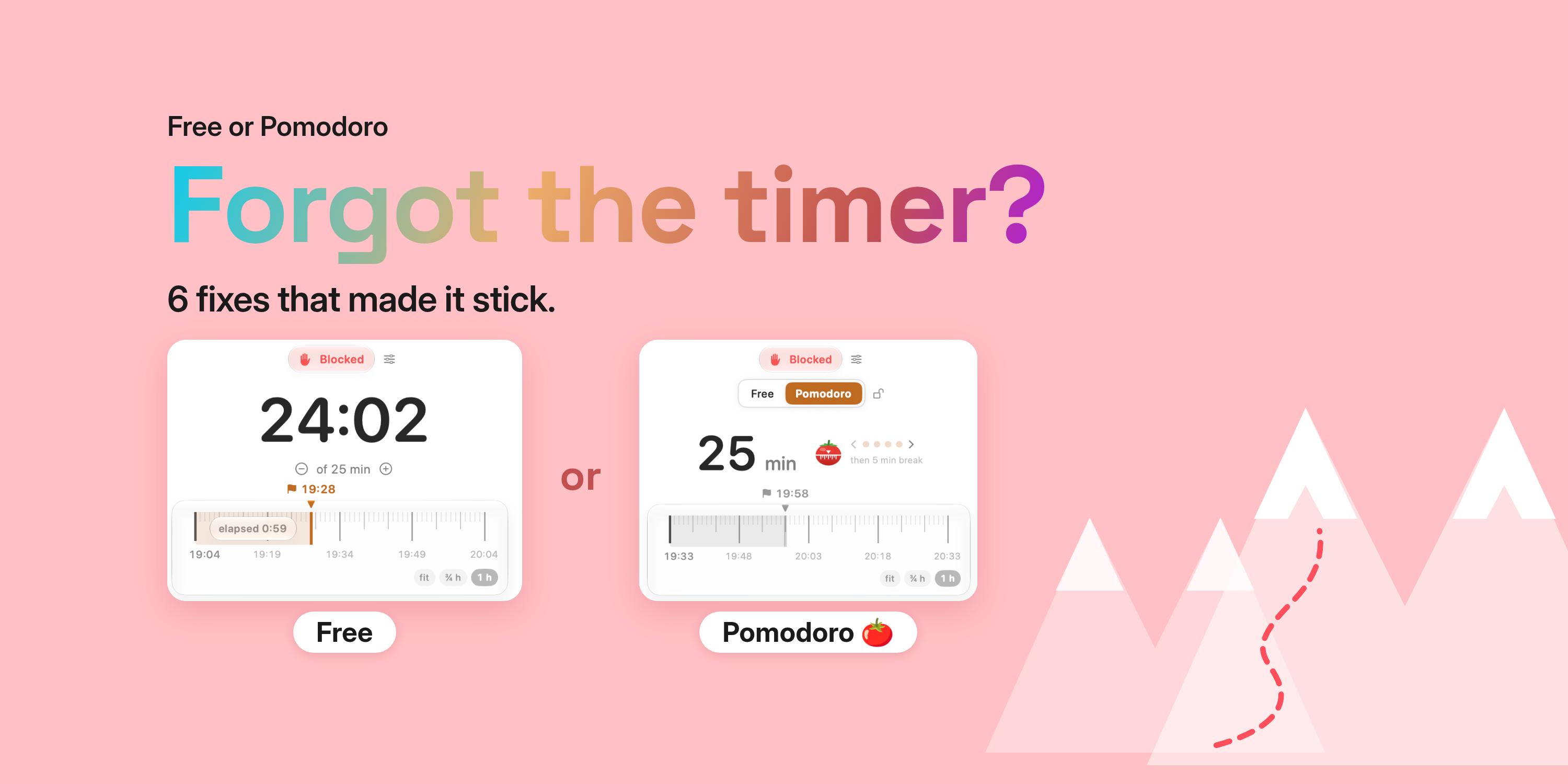
You start the timer. Then you forget it exists.
If you live in Obsidian, you know the feeling. Your notes are plain text, organized, and they stay. Your timer is somewhere else, and it doesn't.
That was my story with time clocking for a long time. I'd start a timer, get into the work, and forget about it completely. An hour later it was still running. Or it had stopped long ago and I never noticed.
The method was never the problem. What finally made it stick for me were a few simple changes. They adapt to any way of clocking, Pomodoro or anything else.
Why automatic tracking isn't the answer
There's another kind of clocking: the automatic one. It records what you do and which apps you use on your PC, all by itself.
For productivity, that doesn't work for me. The result is just stats about nothing. Or it simply tells you that you procrastinate a lot.
I used RescueTime for about four years. It counted everything, every app and every site. But there was no grounding in it. I had the numbers, and nothing in my day changed because of them.
For a long time I also clocked time in Emacs, directly on each task. Org clocking is a great way to work, and I still like it. The problem is that outside Emacs I can't track anything, and I can't hold focus with it. When there's no computer around, the clock simply doesn't exist.
And most of my focus happens exactly there. Reading a book. Writing by hand in a notebook. Thinking a problem through on a walk. That's why I always kept a global timer on the side, one that isn't tied to an editor or a task list.
Every step has to be about awareness, not automation.
Pomodoro or free timing?
There's no single answer here. Something always gets boring, and you switch.
When you notice you're about to drop your timer, or you keep forgetting it, switch. Go to Pomodoro for a while. Later switch back to free timing that follows your day. Sometimes it changes from week to week.
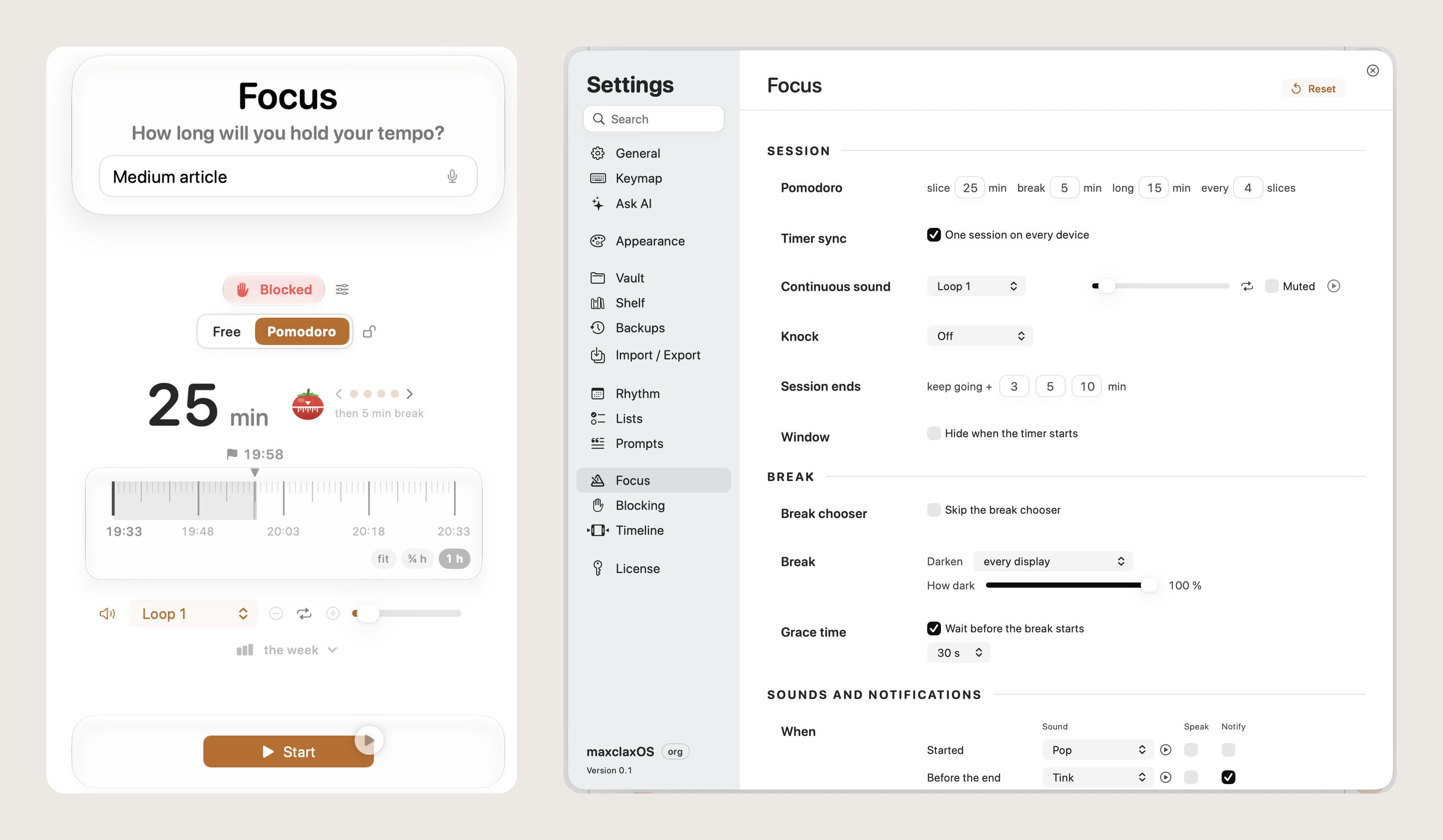
That's why I want both in one place. In Tempo, Pomodoro is one tap away from Free: 25 minutes, then a 5 minute break, and a long 15 minute break every four slices. The rounds are counted next to the timer, and you can change all of it in settings. Same task, same blocker, same stats. Switching modes doesn't mean switching apps.
Here's Pomodoro with its settings:
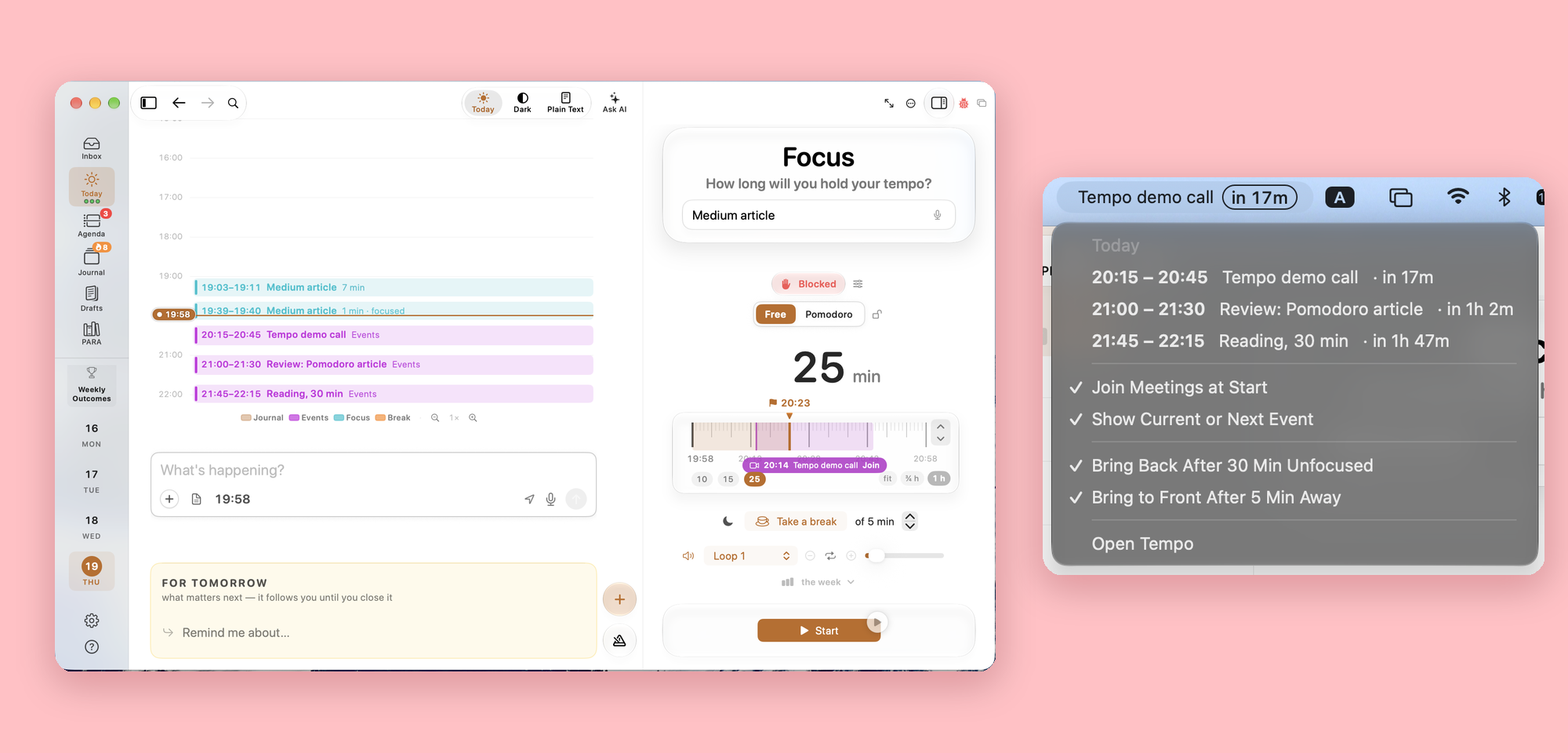
Before you set the length, check what's next. Tempo reads today's events from your Calendar and puts them right on the session timeline. If a call starts in 17 minutes, a 25 minute Pomodoro is the wrong choice, and you see it before you press Start, not when the meeting reminder cuts you off halfway. The same goes for a break. The menu bar shows the current or next event with a countdown, and with a meeting link Tempo can even join the call when it starts.
This is how it looks on my screen:
In the end it doesn't really matter which one you use. What matters is your total time: what you focus on, and how long you actually stay focused.
1. Give your timer its own window
A floating timer window doesn't work. A timer in the tray or menu bar doesn't work either. I tried both, and I just stopped seeing them.
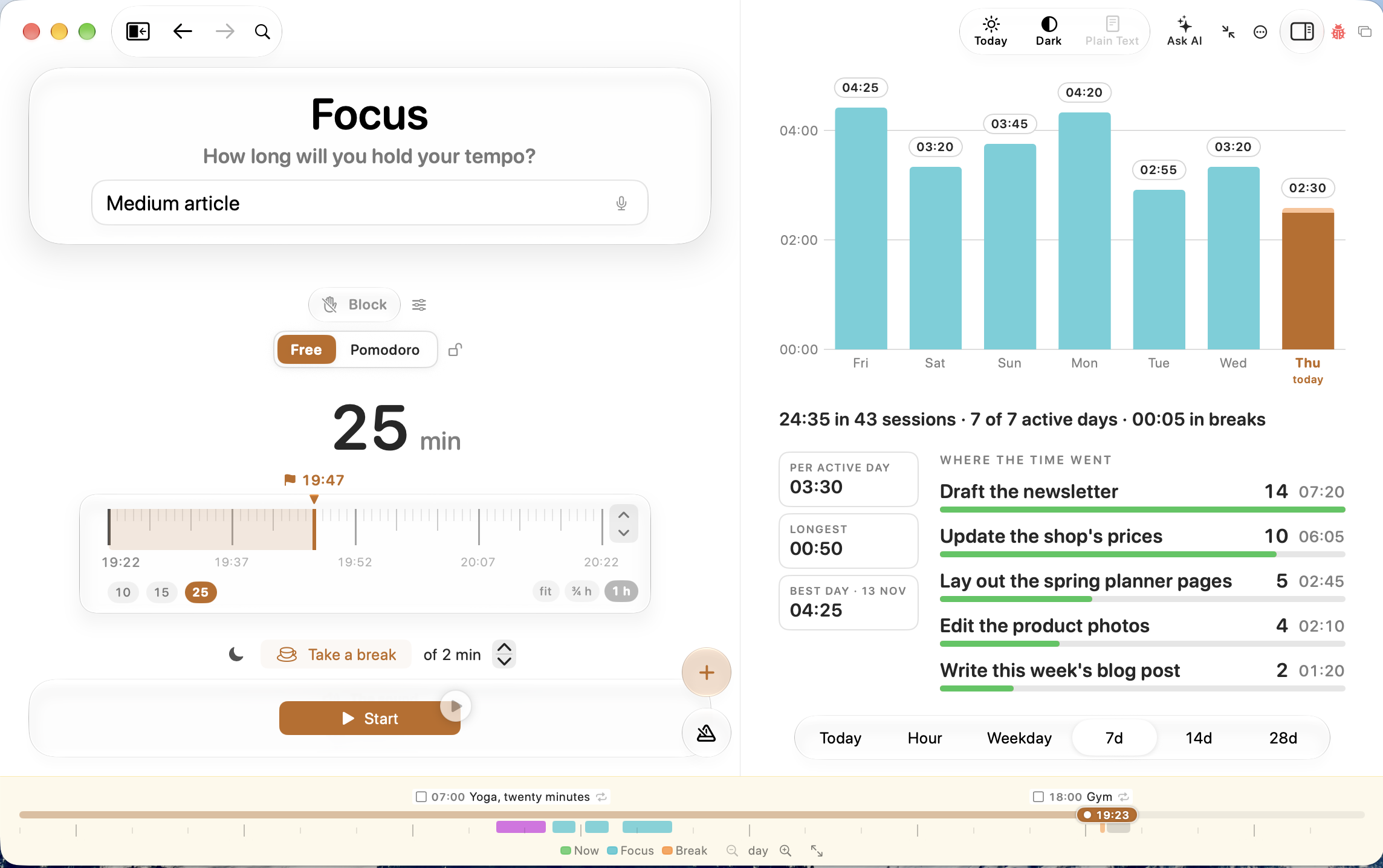
What works is an independent window, its own workspace, with stats of the previous period. And you need to get there fast, from the keyboard, without the mouse.
The chart matters more than I expected. Seeing your time from the last period motivates you.
My Focus window with the stats:
2. Let it tick
The sound of clocking is so important. For me it's the main trigger.
While you're working, you forget about the timer fully. You won't look at it. But you will hear it. The ticking keeps you aware that the clock is running.
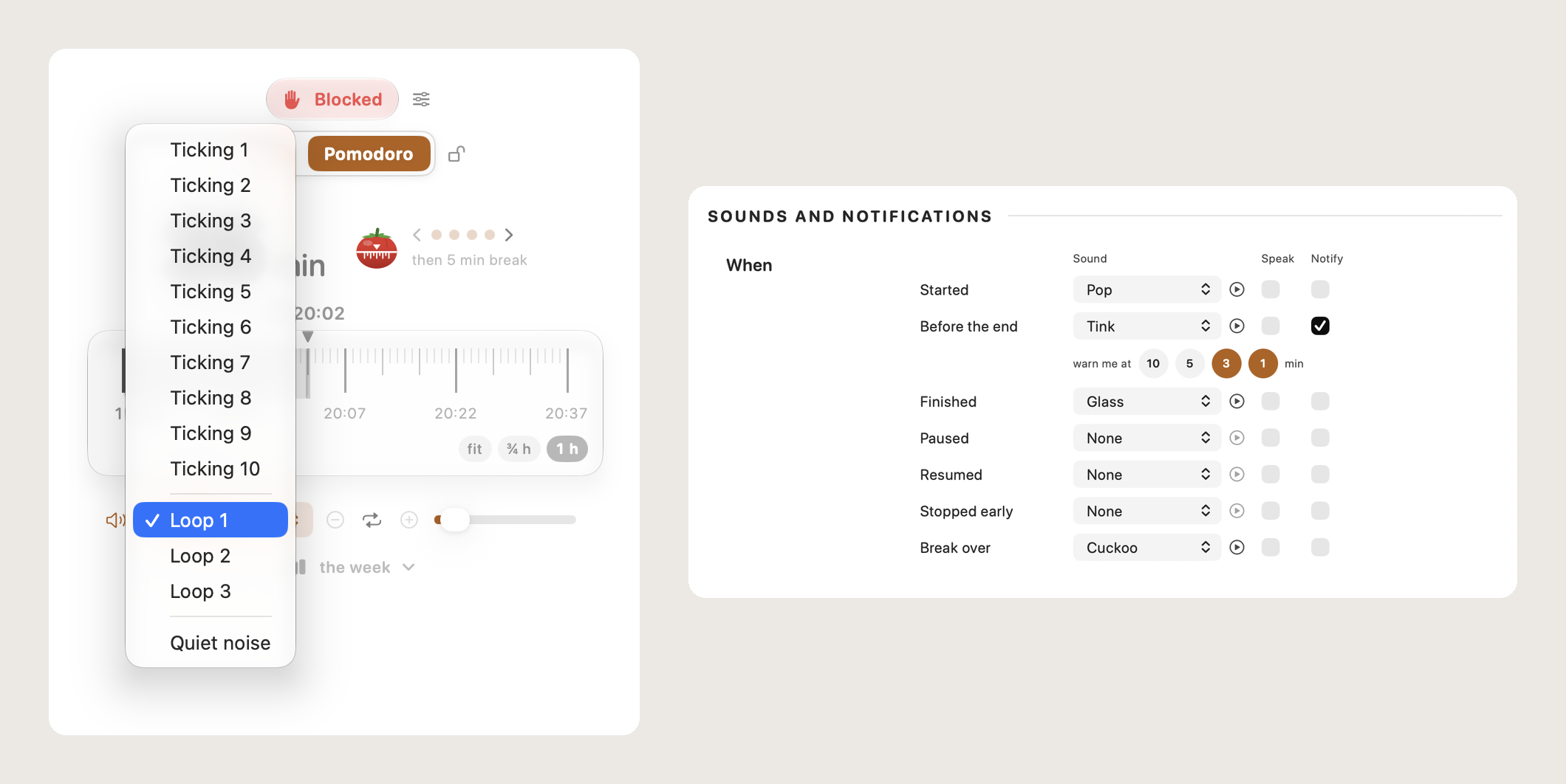
The sound has to fit you, or you'll mute it on day two. In Tempo I pick from ten ticking sounds, a few soft loops, or quiet noise. On top of that, every moment gets its own short sound: start, finish, break over. A warning three minutes and one minute before the end means the session never ends by surprise.
The sounds I pick from:
3. Sync between your devices
My usual situation: I forget about the timer, I get distracted, or I'm just in the toilet. And my phone notifies me that I'm still in a timer.
That small notification plays a real role. Your timer shouldn't live only on one screen.
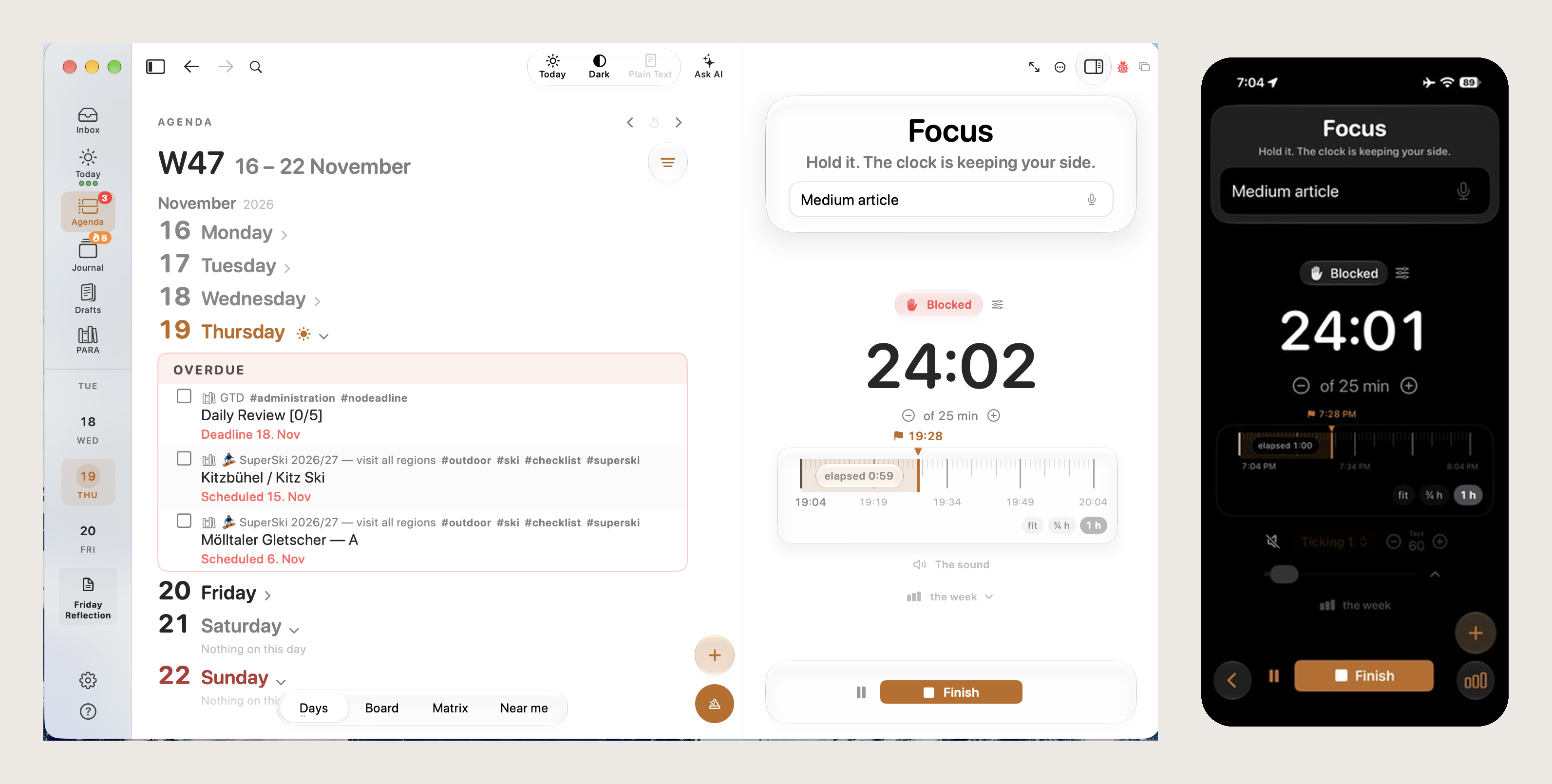
On my Mac and my iPhone it's the same session: the same mode (Free or Pomodoro), the same blocker, the same daily chart.
The same session on both screens:
4. Let your focus say hello
Sometimes in the morning, or after a few hours, you start doing something and forget about it. That's when your focus tool needs to say hello. Something like: "I'm here."
Not loud. Just enough to bring your awareness back.
5. Take breaks with awareness
Breaks are really, really important. And the informal ones matter most: a short walk, a glass of water, a look out of the window.
The main job of a break is to free your head from the work completely. No checking messages, no "one quick thing". Ideas come exactly when you're away.
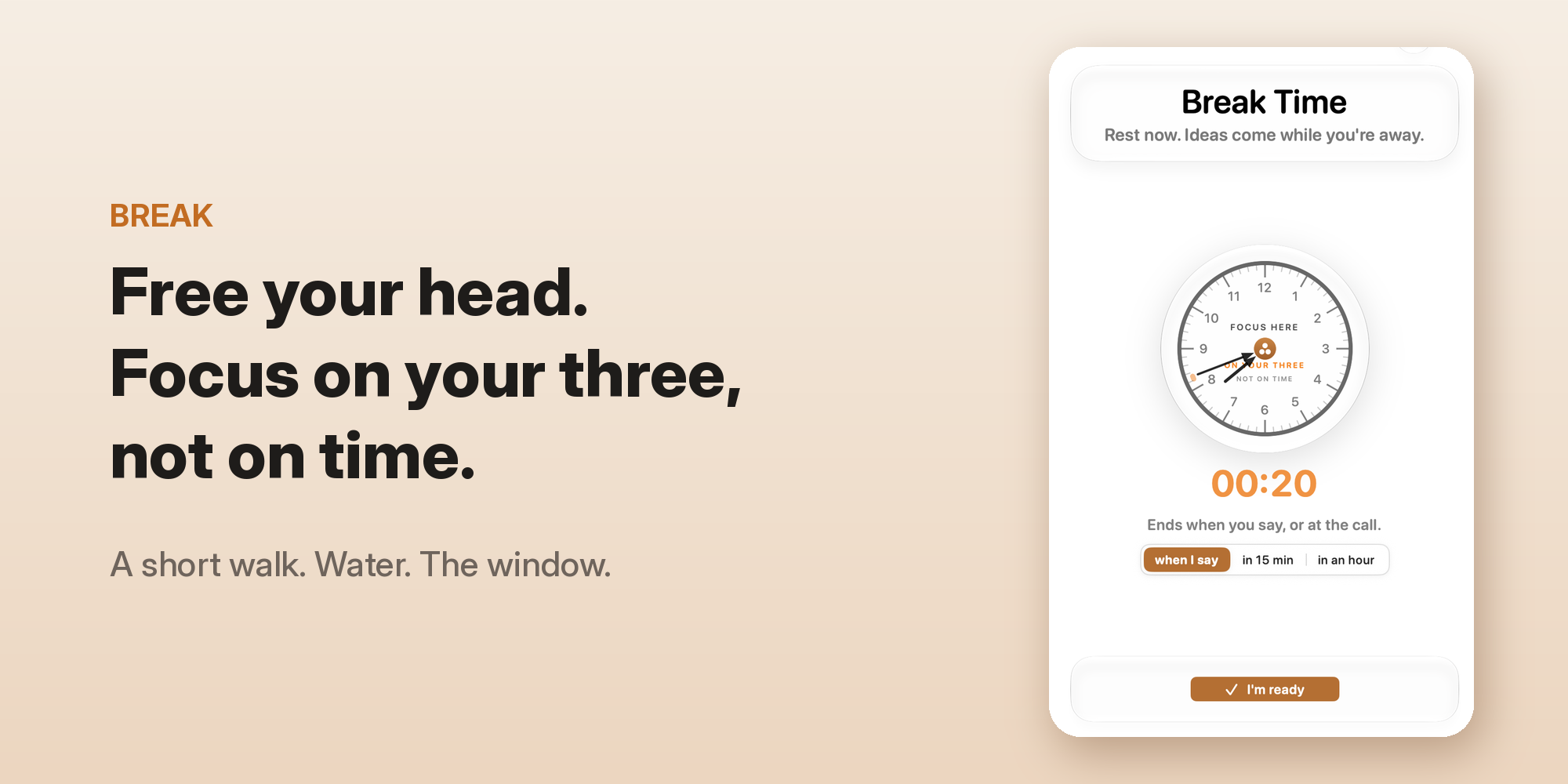
What stays with me is not the clock and not the task list. It's my three outcomes for the day. My break screen says it plainly: focus here, on your three, not on time.
The break screen:
The break also has to be a real pause, with a lock. In Tempo the break darkens every display, so I actually stop instead of "just finishing one thing". A short grace time before it starts lets me close the sentence I'm writing.
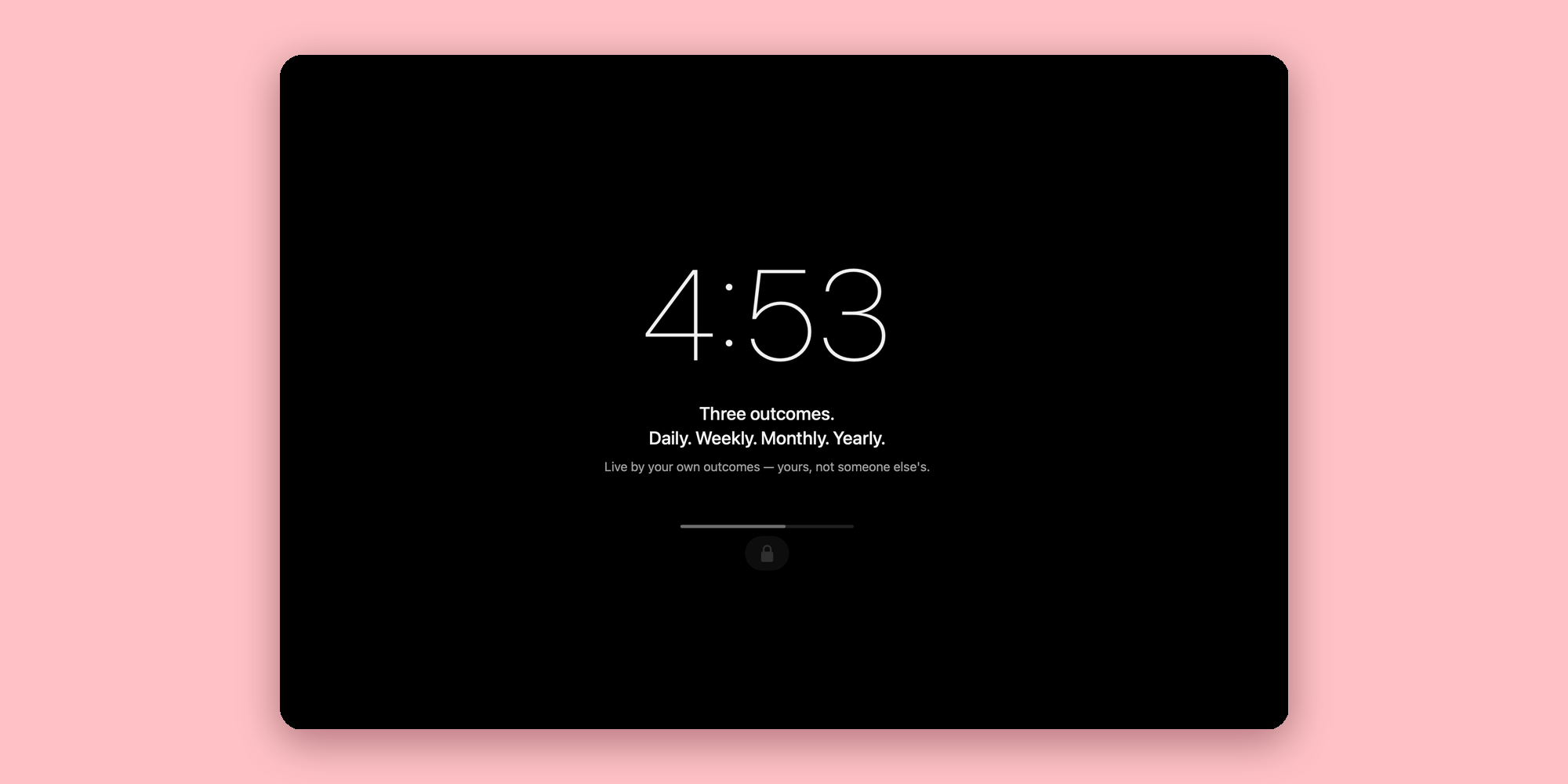
So a break in Tempo can be open or locked. An open break just counts and lets you be. A locked break turns the screen black: the time counts down, my outcomes are right in front of me, and there's a lock at the bottom. It pushes me to stand up and walk away. At the same time the blocker locks my phone, so the break doesn't simply move to the other screen.
In an ideal world, nobody would have to invent things like this. But we don't work in an ideal world.
The locked break:
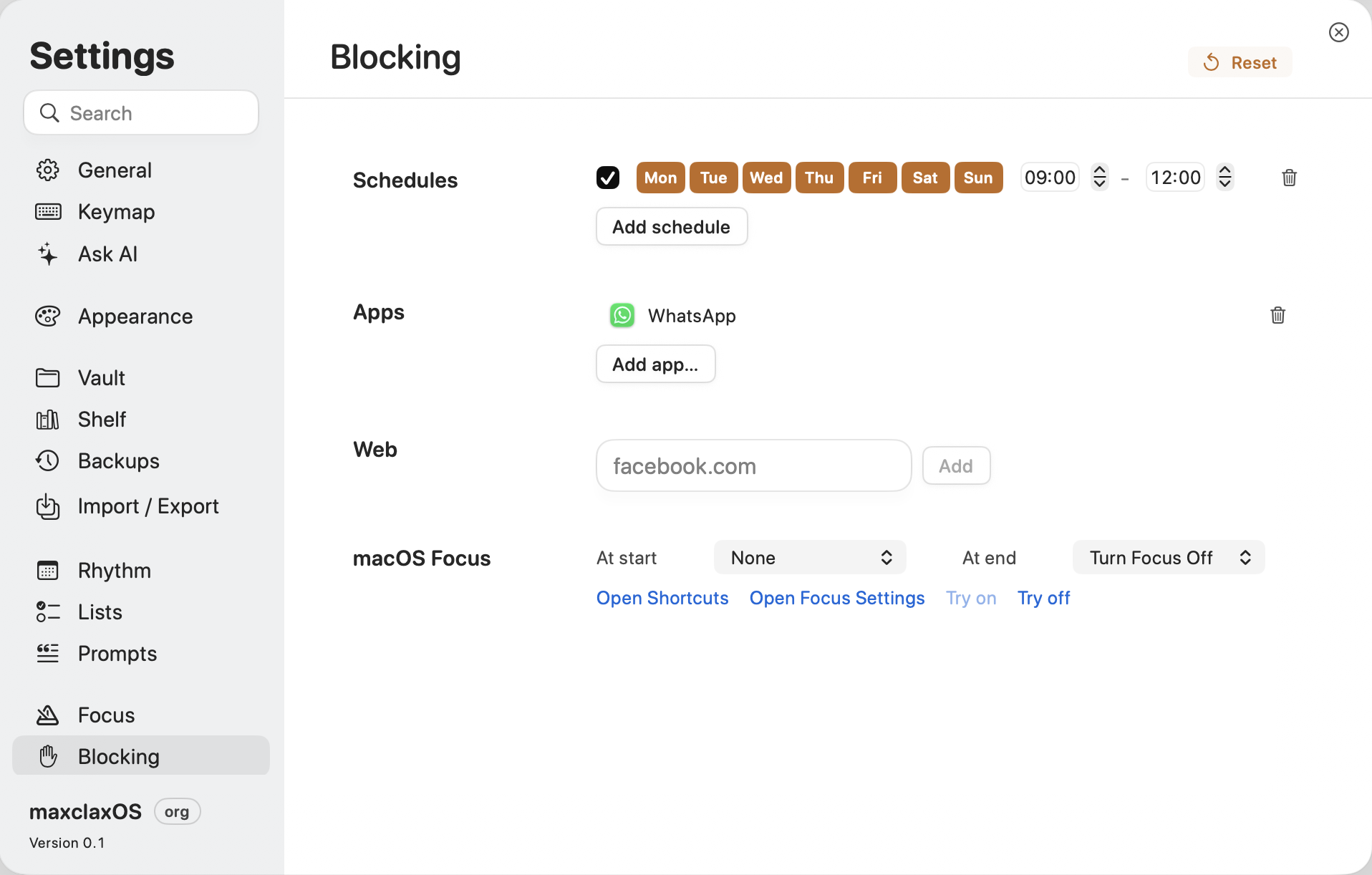
6. Block the distractions
This one is very important. The app has to block distractions while you're in focus, not just count the time you lost to them.
And the blocker has to be synced too. Blocking a site on the computer means nothing if the same thing is one tap away on your phone.
In Tempo I set it once: a schedule (for me, every day from 9:00 to 12:00), the apps to block (WhatsApp first), the websites, and even which macOS Focus mode to turn on at the start and off at the end.
All of it in one settings screen:
That's all it took
An independent window with stats, a ticking sound, sync, a gentle hello, aware breaks, and a synced blocker. None of it is complicated. Together, it's what made clocking finally stick for me.
I work in Tempo, my outcomes app built around the Rule of Three. It keeps everything as plain files in a folder. It helps me with all of this, works across multiple screens, and stays synced between my devices, the distraction blocker included.
Thanks for reading. Follow on X: https://x.com/maxclaxOS
Related: